
Skip to content
Agency Pilot

Website insight

Heatmaps and session recording

See where visitors click and tap, how far they scroll, what they click that does nothing, and — with recording switched on — watch the visit that turned into a lead or the one that didn't. Privacy controls are built in, and recording is off until you turn it on.

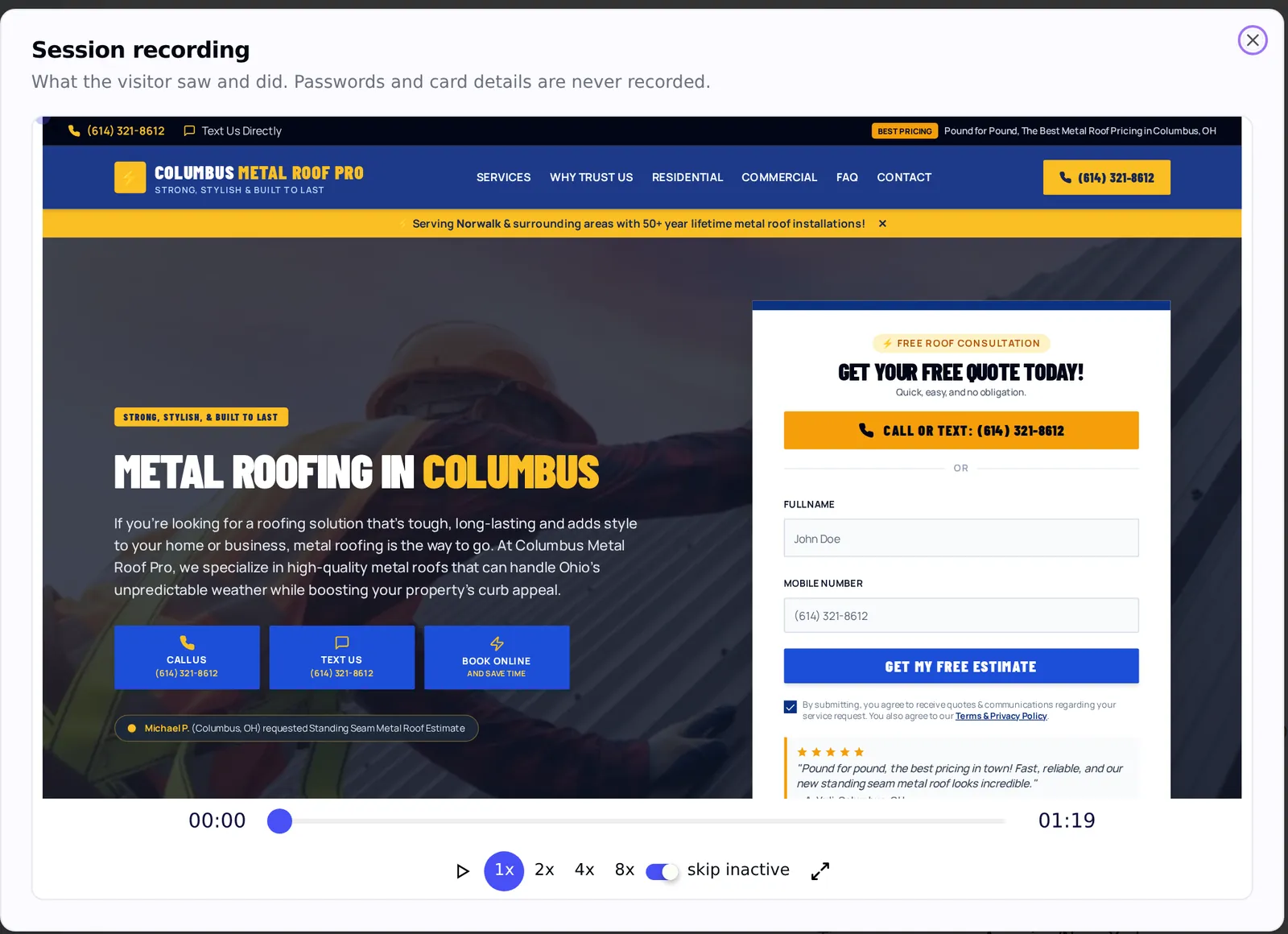
A session recording playing back a visit to a roofing company's landing page, with playback speed controls
A recorded visit, with speed controls and inactive time skipped.

Click and tap heatmaps

Drawn over a real snapshot of the page, for phone, tablet and computer separately.

Scroll depth

The share of visitors reaching 25%, 50%, 75% and the bottom of each page.

Dead and rage clicks

Clicks on things that do nothing, and repeated angry clicks, per element.

Session recording

Every visit, paid visits only, or a sample — with 30, 60 or 90-day retention.

Typed text, your call

Hidden by default; one switch to show form typing, a second for sensitive fields.

Consent banner

Optional, for everyone or visitors in chosen states, and it honours Global Privacy Control.

Heatmaps on the real page

About once a week for each page and screen size, a visitor's browser takes a masked snapshot of the page — emails and long numbers scrubbed, scripts removed — and clicks, taps and scroll depth are drawn over it. Visitors on datacenter, Tor or proxy networks are never asked for a snapshot. Below the map, the most-clicked elements are listed with their clicks, dead clicks and rage clicks.
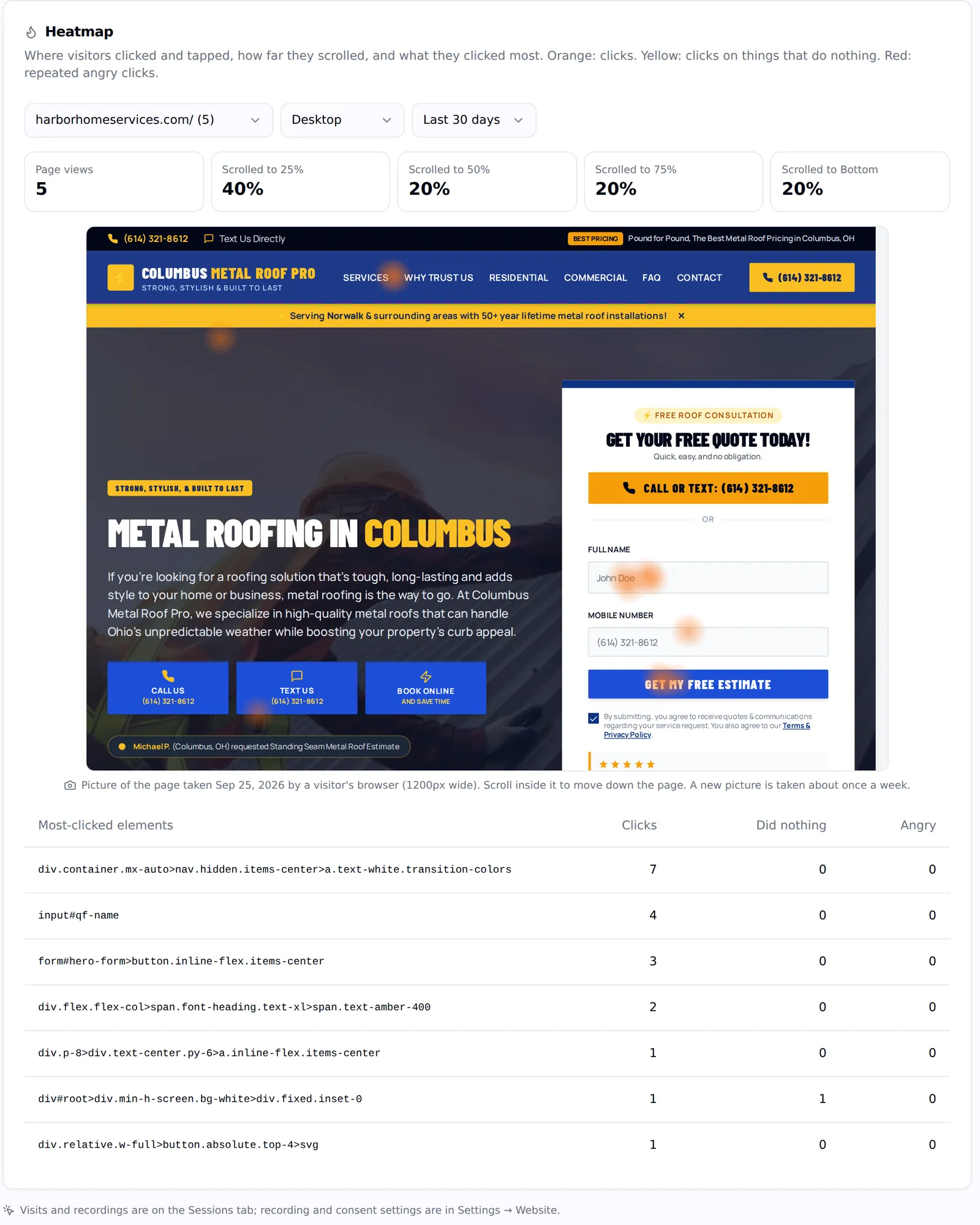
A heatmap drawn over a snapshot of a roofing company landing page with scroll depth figures and a table of the most-clicked elements
Clicks and scroll depth on a real page snapshot, with the most-clicked elements.

Recordings with the context that matters

Every recording opens with the visit's channel, device, location and length above the player, and plays at 1×, 2×, 4× or 8× with inactive time skipped. From a lead, click Watch the visit to see exactly what happened before the form was sent.

Recording is an add-on switched on per client: record every visit, only paid visits, or a percentage sample.

Privacy by default

Password and payment-card fields are always hidden, and pages that contain them aren't recorded at all. What visitors type is hidden unless the client turns on Show what visitors type in forms, and sensitive fields — Social Security numbers, dates of birth, bank and ID numbers, one-time codes — stay hidden unless a second switch is on as well. The client decides, and the client is responsible for that choice.

The optional consent banner asks before recording, for everyone or only visitors in states you choose; Global Privacy Control counts as a no, the answer is remembered for 180 days, and the banner's position, theme and privacy-policy link are configurable. Recordings are deleted when their retention ends, and 7 days after an agency's paid period ends.

What this does not do

Better to find this out here than three weeks in.

  • Heatmaps are included on the Agency plan and above. Session recording is an add-on on those plans — $15, $25 or $35 per site per month for 30, 60 or 90 days of history — and is off until it's switched on for a client.
  • Heatmaps update from weekly snapshots; a page redesigned mid-week shows old snapshots until the next one is taken.
  • Recording doesn't capture pages with password or card fields.

Questions

Do I need a separate heatmap tool?
Not for client websites. The same one-line script that tracks leads draws heatmaps and, with the add-on, records sessions.
Is session recording legal?
It depends on where the business and its visitors are. The consent banner, masked typing and sensitive-field controls help clients meet their obligations, and the website visitor notice explains what's collected. Clients should check their own privacy policy and local law.
How long are recordings kept?
30, 60 or 90 days, depending on the retention chosen, then deleted.

Put your agency on autopilot

Start a 14-day trial with 300 credits. Add your first client and send an onboarding link today.

Begin with a specific website question

Heatmaps and session recording are most useful when the agency is investigating a defined question. Ask whether visitors notice the main action, reach an important explanation, encounter a confusing element or struggle before submitting a form. Select the page and device view relevant to that question. Watching unrelated recordings can consume time without producing a decision. A focused review turns observed behavior into a practical hypothesis, such as whether mobile visitors mistake a decorative card for a link. Write down what you expect to see and what evidence would change your view before opening a large collection of visits.

Compare mobile and desktop behavior separately

Page layouts and interaction patterns differ by screen size. A button that is clear on a desktop may appear much later on a phone, and a navigation choice that works with a mouse may be harder to discover by touch. Review the heatmap for the appropriate device rather than treating every visitor as part of one visual layout. The documented heatmaps use separate page snapshots for phone, tablet and computer. Keep the page version in mind too: an older snapshot after a redesign can show a layout that no longer matches the current site. Device context and page context are both necessary for a useful interpretation.

Read clicks as evidence of intent and confusion

A frequently clicked element may be useful, prominent or misleading. Inspect what the element actually does before deciding that high activity is a success. Dead clicks can reveal that visitors expect an action where none exists, while repeated clicks can suggest frustration or uncertainty. These signals are starting points for investigation rather than a complete explanation of the visitor's intent. Open representative recordings when available and test the interaction yourself. If a visual element resembles a button but does nothing, a change in wording or styling may be more appropriate than adding another call to action elsewhere on the page.

Use scroll depth to inspect content placement

Scroll information helps you understand how much of a page visitors reach. It does not prove that everyone who reached a section read or understood it. Review the position of important content alongside the observed depth: service limitations, trust information, pricing context or the next step may appear later than expected. For an illustrative landing page, visitors may act near the top because the answer is already clear, or leave because the opening section is unhelpful. Combine scroll patterns with clicks, lead outcomes and representative visits before deciding whether the page needs to be shorter, reordered or explained more clearly.

Review recordings with a small evidence log

For each useful recording, note the page, device, source context, observed behavior and the question it raises. Keep observation separate from interpretation. Visitor tapped a noninteractive heading three times is an observation; visitor distrusted the business is a much stronger claim the recording may not support. Group similar observations to identify a pattern worth testing. A small evidence log makes it easier to explain a proposed website change to the client and the developer. It also prevents the team from redesigning a page around one memorable visit that may not represent a common experience.

Choose recording scope and retention deliberately

Recording is off until it is enabled for the client, and the documented options include all visits, paid visits or a percentage sample. Choose a scope that fits the investigation rather than collecting more simply because it is possible. Paid-visit recording may suit a landing-page question, while a sample may support a broader usability review. Consider how long the team needs to revisit the evidence when selecting the available retention period. Recordings are deleted according to that setting, so plan the analysis while the relevant material is available. These are operational choices that should be made alongside the client's own privacy decisions.

Keep privacy controls part of the setup conversation

The documented defaults hide typed text, and password and payment-card pages are not recorded. Additional controls govern form typing, sensitive fields and the optional consent banner. Explain the available settings to the client before enabling recording, including the visitor notice and the handling of Global Privacy Control. Avoid treating the existence of a banner as a blanket statement about every business's obligations. The agency should know which settings the client selected and why, then verify that the intended site experience matches those choices. A clear setup record helps keep later website changes from quietly altering the assumptions behind the recording workflow.

Turn an observation into a focused change and review

Select a change that addresses the observed problem and define what you will inspect afterward. If visitors repeatedly click an inactive service card, the team might make its purpose clearer or add the intended navigation. Record the date of the change and check the relevant device view after new evidence becomes available. Avoid changing several unrelated parts at once if you need to understand which adjustment mattered. Heatmaps and recordings can show whether the new experience appears easier to use, while lead and business records help assess outcomes. Neither source alone proves that a particular design change caused every later movement in performance.

Frequently asked questions

What is a good first question for a heatmap review?

Choose a specific interaction on an important page, such as whether visitors find the enquiry button or mistake a visual card for a link. Define the device view and intended action. A focused question makes the findings easier to interpret and leads to a more useful change than browsing every page without a purpose.

Does a hot area on a click map mean the design is working?

Not necessarily. People may click an element because it is useful or because it looks interactive when it is not. Inspect the element and the resulting behavior before deciding. A heatmap identifies where activity occurs; it does not automatically establish whether that activity helps the visitor complete their goal.

How should I investigate dead clicks?

Check whether the clicked element appears to promise an action, then inspect representative sessions and test the page yourself. The cause may be misleading styling, an interaction problem or a harmless click. Group similar evidence before proposing a change so the team addresses a real pattern rather than an isolated event.

Do rage-click signals prove that a visitor was angry?

They identify repeated clicking behavior, which can indicate frustration but does not reveal a person's thoughts. Review what happened around the interaction and whether the element responded as expected. Describe the observable pattern in client reports rather than claiming certainty about an emotion that the recording cannot directly establish.

Why should I avoid combining device views casually?

The page can look and behave differently across screen sizes, so the location and meaning of a click may differ. Review phone, tablet and desktop snapshots in their own context. A desktop finding may not explain a mobile conversion issue if the relevant element appears in a different place or form.

What does scroll depth tell me about reading?

It shows how far visitors reached in the page, not whether they read every word in that area. Use it to examine content placement and access to important sections. Combine it with clicks and observed journeys before concluding that a long page is ineffective or that a particular section was understood.

Why might the heatmap show an older page design?

The documented heatmaps use snapshots refreshed roughly weekly for each page and screen size. A redesign can therefore appear after the next snapshot is taken rather than immediately. Check the snapshot context before using the overlay to judge the placement or behavior of elements on the newly published page.

When should I watch a recording instead of relying on a heatmap?

Use a recording when the sequence matters: how a visitor approached a form, what preceded repeated clicks or where a journey became confusing. Heatmaps summarize activity, while recordings provide individual examples. Both should support a defined question rather than encourage conclusions from the most memorable visit alone.

Can I review the visit associated with a captured lead?

The documented workflow provides a Watch the visit action from a lead when the relevant recording is available. Use it to understand the observed journey before the enquiry. Keep the lead's actual outcome in view so the recording adds context rather than replacing the client's knowledge of the subsequent sales conversation.

Should I record every visit for every client?

Choose the scope according to the investigation and the client's settings. The available modes include all visits, paid visits and sampling. More recordings do not automatically produce better insight if the team lacks a clear review question or the capacity to analyze them. A targeted scope can make the work more manageable.

What happens when a recording reaches its retention limit?

It is deleted according to the selected retention period. Plan the investigation and client discussion within that window rather than assuming the recording will remain available indefinitely. Keep concise findings and decisions in your working process so the value of the review does not depend on replaying the same visit forever.

Are password and payment-card pages included in recordings?

The documented behavior excludes pages containing password or payment-card fields from recording, and those fields are always hidden. Do not expect the tool to provide a complete replay of those flows. Account for that boundary when choosing a usability question and deciding what evidence is available to investigate it.

Is visitors' typed text visible by default?

Typed text is hidden by default. Separate settings control showing form typing and sensitive fields. Review these choices deliberately with the client rather than enabling them casually to satisfy a broad research question. Many usability problems can be investigated through interaction behavior without needing to see what a visitor entered.

Can the consent banner alone establish that our setup is appropriate?

The banner is one configurable control, not a complete assessment of every client's requirements. Review the documented settings, visitor notice and the client's own decisions before enabling recording. Keep the operational explanation specific to what the feature does rather than presenting a universal assurance based solely on the presence of a banner.

How should I measure whether a website change helped?

Record the problem, the change and the date, then review comparable new evidence for the relevant page and device. Check lead outcomes where available and consider other changes during the same period. Look for a consistent pattern rather than attributing every later improvement to the design adjustment automatically.